Showing posts with label hard. Show all posts
Showing posts with label hard. Show all posts
Wednesday, February 4, 2015
Remove password pattern lock and hard reset your Nokia X
Nokia X drop by in my workplace. And the owner of this phone forgot the password. This phone is one of the easiest phone to perform a hard reset or factory reset.
This can fix the following issue:
1. If you forgot your gmail account
2. If you forgot your pattern lock
3. If you forgot your password
4. If your phone stuck up in LOGO only, this work sometimes if the firmware is not totally damage.
5. If you the apps are force closing automatically.
Again, if you are going to hard reset / factory reset your data will be deleted. Like games, applictions, calendar sync, etc.. etc.
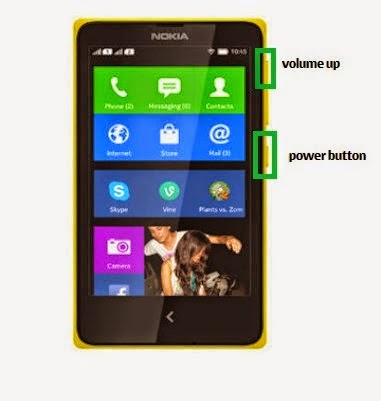
Here is the procedure:
1. Turn off your phone
2. Press and HOLD VOLUME UP and Power Button
3. Release the POWER button when the Nokia Logo appear, but keep on holding VOLUME UP.
4. Press the VOLUME Rocker to navigate and Power key to confirm.
5. Select wipe data / factory reset
6. Reboot your phone.
I hope this tutorial helps ;)
Read more »
This can fix the following issue:
1. If you forgot your gmail account
2. If you forgot your pattern lock
3. If you forgot your password
4. If your phone stuck up in LOGO only, this work sometimes if the firmware is not totally damage.
5. If you the apps are force closing automatically.
Again, if you are going to hard reset / factory reset your data will be deleted. Like games, applictions, calendar sync, etc.. etc.
Here is the procedure:
1. Turn off your phone
2. Press and HOLD VOLUME UP and Power Button
3. Release the POWER button when the Nokia Logo appear, but keep on holding VOLUME UP.
4. Press the VOLUME Rocker to navigate and Power key to confirm.
5. Select wipe data / factory reset
6. Reboot your phone.
I hope this tutorial helps ;)
GSM frequencies :850 900 1800 1900
Standard UMTS :900 2100
Type :Touch
Dimensions (W x H x D) :115,50 x 63,00 x 10,40 mm
Weight :128,66 g
Main display :Color / IPS TFT
16M colors
480 x 800 px (4.00") 233 ppi
Talk time (max.) :2G: 798 min. (13,3 h)
3G: 618 min. (10,3 h)
Stand-by (max.) :2G: 684 h. (28,5 days)
3G: 528 h. (22,0 days)
Standard battery :Li-Ion 1500 mAh
Internal memory :4 GB
RAM memory :512 MB
Memory cards : microSD, microSDHC (up to 32 GB)
Operating system :Nokia X Software Platform 1.0
Processor :Qualcomm MSM8225
Processor clock :1,00 GHz
- See more at: http://factory-reset.blogspot.com/2014/04/how-to-reset-nokia-x.html#sthash.R3xFbGH4.dpuf
Sunday, February 1, 2015
Hard Reset your DTC GT5S A Junior Duo and remove password pattern lock and gmail account
This tutorial is for DTC GT5S(A) Junior Duo. This is different with DTC GT5S only. The phone has an MTK CPU while the GT5S only has a Spreadtrum CPU and it has different method to remove password, pattern lock and gmail account lock up. I will upload the back up rom that I had created. So check it out later or maybe tomorrow, because I have some pending firmwares to be uploaded.

Hard resetting / factory resetting your phone will solve the following issues:
1. If you forgot your pattern lock
2. If you forgot your gmail account
3. If you forgot your password
4. Apps that automatically force closing
5. Stuck in DTC Logo (sometimes does not work if the firmware is totally damage)
NOTE: Performing hard reset will erase your data.
To hard reset:
1. Turn off your phone.
2. Press and Hold first the POWER Button and then immediately Press and HOLD VOLUME UP until you see the Android Robot.
3. Press the POWER Button to activate Android System Recovery (or you can try all buttons if power button did not work, I had a slight memory lose there :D.)
4. Select wipe / factory reset, press Volume rocker to navigate and press the VOLUME UP to confirm your selection
5. Reboot your phone.
Note:
If performing hard reset did not succeed, you need to wipe the cache first in the android system recovery before performing wipe / factory reset.
I hope this tutorial helps you.. If you have any question just drop a comment.
Friday, January 30, 2015
Hard Reset xTab 7 inch Dual Camera Sim Android Tablet Pc
Hard Reset xTab 7 inch Dual Camera , Sim supported Android Tablet Pc
.jpg "xtab 7inch") |
| xtab 2g dual cam tablet pc |
What is Hard Reset ?
A hard reset is also called Factory reset. When you restore your Android device to state when it left the factory or first time the Smartphones or Tablets turns on . Hard Reset erase all user setting,contents (i.e games,contacts,messages,apps preference setting ,bookmarks,third party apps as well .) So if youre enough lucky then you can make backup of all your data before hard reset .In most cases user data lost. Different Android Devices have different method for Hard Reset.
When Hard Reset is Necessary for Smartphones or Tablets ?
1. Forgotten Pattern Lock on Android Tablets or Smartphones.
2.Too many pattern attempts / Reset user lock.
3. Tablets PC,Smartphones stuck on Gmail account.
4. Android Tablet PC stuck / freeze on Android logo.
5. Tablet Android or Smartphones hang on start-up / Multiple errors generating by OS.
6. Android market having problems or generating errors.
7.Upgrading to new Android version.
Make sure to charge battery upto 60%.
How to Hard Reset Xtab 7inch 2G Sim Android tablet pc ?
.jpg) |
| Hard Reset xtab 2g dual cam tablet pc |
- Turn off xtab tablet pc completely.
- Press and hold volume up and volume down button together (as mention in image) .
- Press power button for 10 second.
- Android logo will appear with yellow Triangular mark .
- Leave all the buttons.
- Now Press volume down button for once .
- Wait for Recovery mode to appeared .
- With the help of Volume buttons go to Factory reset/Wipe data.
- Press power button to select factory reset.
- Select Reboot .
you are done.
.jpg) |
| hard reset XTAB 2g dual Cam |
Related Posts.
How to hard reset Scroll Basic Plus tablets.
How to hard reset Vox Mid V91 Tablets
Hard Reset Mediacom Smartpad 715i Tablets.
Hard Reset Coby Kyros Mid 7010 WC Tablets
Hard Reset Samsung Galaxy Tab 2 P5100 Tablets
Hard Reset Acer Iconia A500 Tablets
Hard Reset Symphony w20 Tablets
Hard Reset Archos 101 Titanium Tablets
Cherry Mobile Sapphire 2 0 Remove Pattern Lock Hard Reset Google Account TMPA
Did you forgot your google account or you cannot enable the data connection so that you can enter your google account to your phone to recover your phone.
In this tutorial we will remove the pattern lock of your phone (Sapphire). Just follow the instructions carefully so that you can fully restore your phone into its normal state.
*** Note: I am not responsible for bricking your phone, files uploaded are proven tested to support Sapphire 2.0 and 1.0..
"For Windows OS 64bit users I am not sure if this tutorial will work, because there is an issue with Research Downloa. But I can guarantee that this will work in 32bit Windows OS"
"TO ALL SAPPHIRE 2.0 USERS, DO NOT PROCEED IF YOU DO NOT WANT TO RISK BRICKING YOUR PHONE. NO AVAILABLE ROM FOR 2.0 AS OF THE MOMENT. THIS IS ONLY THE ALTERNATIVE WAY TO REMOVE FORGOTTEN PATTERN LOCK, PASSWORD OR GMAIL ACCOUNT. BUT AS IVE SAID I HAVE TRIED AND TESTED THIS FILE IN VERSION 2.0"
Lets proceed. Download First the 3 files.
Research Download ----> Here
UserBlock ------> Here
Spreadtrum Driver -------> Here
Spreadtrum Driver for Windows 7 ---> Here
After downloading the files. Extract it in one folder.
After downloading the files. Extract it in one folder.
1. Open Research Download
2. Load Packet, it is the first button in Research Download, look for CM Sapphire userdata(firmwares2you.blogspot.com).pac file...
3. Check the following below: ONLY THE THREE
✓FDL1
✓FDL2
✓UserData
4. Click in Calibration Page or Back up page (newest version) in Research Download. And UnCHECK ALL
5. Press OK, and Press Play Button.
Check Picture for you reference


To Connect your phone.
1. Press the Play button in Research Download. You notice that it is waiting for your phone to establish a connection.
2. Insert USB Cable while holding Volume UP or Down
3. If you correctly installed the driver for spreadtrum chip, it should detect your phone and continue flashing/resetting your phone.
I hope this tutorial helps. If you have any questions just drop a comment. Stay stuned for more tutorials.
If you find this post useful. A simple thank you in the comment box will suffice. ;)
If you find this post useful. A simple thank you in the comment box will suffice. ;)
Wednesday, January 28, 2015
Hard Reset HTC M4 Android Smartphone
HTC M4 Hard Reset

- Push and hold the VOLUME (-) button , and press and hold the POWER button .
- Await the display with the 3 Android images to appear , after that release the POWER and VOLUME (-) buttons .
- Press VOLUME (-) to choose FACTORY RESET , and then press the POWER button . Factory reset will completely erase all your data and customized settings , and will remove any applications youve downloaded and installed . Make sure to backup any data and files you wish to keep before you decide to do a factory reset .
Tuesday, January 27, 2015
Torque Droidz Beat TV Hard Reset Hang Google Account Removal Pattern Lock
Before you proceed flashing / hard resetting your phone / tablet make sure to back up your important files if possible. Because we care about your data.
We also suggest that your battery should be atleast 50% or better to have it fully charge, lower than the said value may cause unwanted result, such as bricking your phone / tablet rendering it unuseable. This is very important in flashing your phone / tablet. Use original USB cable as possible.
Files that you downloaded should not be corrupted, if ever the file is corrupted you might brick your phone. Or the flashing will start.
Drivers are very important specially in Spreadtrum Chipset, having an Spreadtrum SPD6610 (non android devices) driver will not work in SPD6820 (android devices).
If you are using laptop to flash your phone, make your that it has enough charge. If your laptop shutdown when your flashing your phone/tablet, youll end up bricking your phone. Sometimes you can still recover your phone just flash it again and your phone will boot up again. But that is just a case to case basis, if your phone / tablet is deadboot (totally dead, erased all program in the chip) you cant recover it, you will need to seek professional help (technician).
In this tutorial I will gonna teach you how to hard reset your Torque Droidz Beat TV. This can fix the following issues that you are experiencing in your phone:
1. Force Close Apps
2. If you forgot your Google Account
3. Hang in Logo (sometimes)
4. Pattern Lock
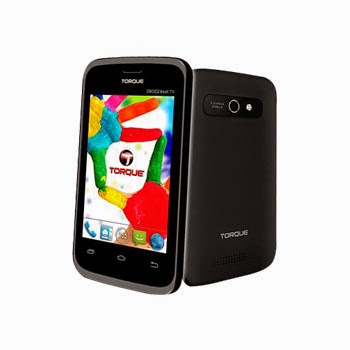
- Press and hold volume up and power button for about (5 seconds)
- A phone with exclamation mark will appear.
- Press power button to activate the Android system recovery
- Navigate to wipe data/factory reset (volume down) to select press volume up
- Select Yes – delete all user data (to select press volume up)
- Reboot your phone
I included a video for your reference.
If you find the tutorial incorrect please drop us a comment. Thank you.
Monday, January 26, 2015
Hard Reset your Samsung Galaxy S4 mini I9195T and remove password pattern lock gmail account
Check out this tutorial for Samsung Galaxy S4 mini i9195T to hard reset your phone. You can try this tutorial with other Samsung Galaxy S4 mini. But I cannot guarantee that If this procedure will work.
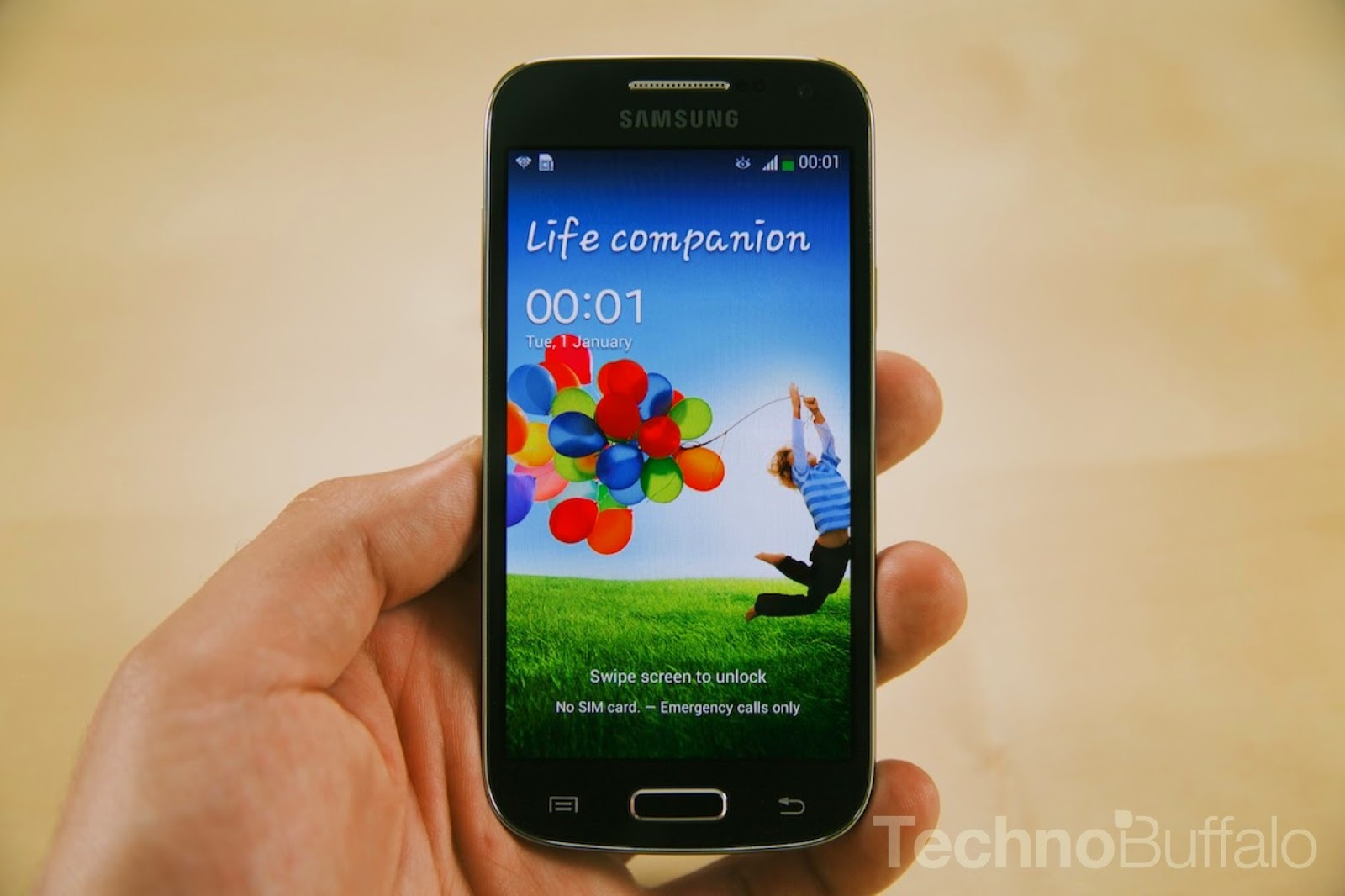
Hard resetting / factory resetting your phone will solve the following issues:
1. If you forgot your pattern lock
2. If you forgot your gmail account
3. If you forgot your password
4. Apps that automatically force closing
5. Stuck in Logo (sometimes does not work if the firmware is totally damage)
NOTE: Performing hard reset will erase your data.
To hard reset:
1. Turn off your phone
2. Press and Hold VOLUME UP + Home Button +Power Button simultaneously. Do not release until you see "RECOVERY BOOTING" in the screen.
3. Just wait until you see the Android System Recovery
4. Select wipe / factory reset, press Volume rocker to navigate and press the POWER Button to confirm your selection.
5. Reboot your phone.
Note: Some variant of Samsung Galaxy S4 Mini does not show recovery booting. So if you see the Samsung Galaxy S4 Mini Release the buttons
Note: If performing hard reset did not succeed, you need to wipe the cache first in the android system recovery before performing wipe / factory reset.
I hope this tutorial helps you.. If you have any question just drop a comment.
Read more »
Hard resetting / factory resetting your phone will solve the following issues:
1. If you forgot your pattern lock
2. If you forgot your gmail account
3. If you forgot your password
4. Apps that automatically force closing
5. Stuck in Logo (sometimes does not work if the firmware is totally damage)
NOTE: Performing hard reset will erase your data.
To hard reset:
1. Turn off your phone
2. Press and Hold VOLUME UP + Home Button +Power Button simultaneously. Do not release until you see "RECOVERY BOOTING" in the screen.
3. Just wait until you see the Android System Recovery
4. Select wipe / factory reset, press Volume rocker to navigate and press the POWER Button to confirm your selection.
5. Reboot your phone.
Note: Some variant of Samsung Galaxy S4 Mini does not show recovery booting. So if you see the Samsung Galaxy S4 Mini Release the buttons
Note: If performing hard reset did not succeed, you need to wipe the cache first in the android system recovery before performing wipe / factory reset.
I hope this tutorial helps you.. If you have any question just drop a comment.
Sunday, January 25, 2015
Hard Reset MSI Windpad Enjoy 7 Plus Android Tablet Pc
How to Hard Reset MSI Windpad Enjoy 7 Plus Android Tablet Pc
 |
| MSI Enjoy Plus Tablet Pc |
What is Hard Reset ?
A hard reset is also called Factory reset. When you restore your Android device to state when it left the factory or first time the Smartphones or Tablets turns on . Hard Reset erase all user setting,contents (i.e games,contacts,messages,apps preference setting ,bookmarks,third party apps as well .) So if youre enough lucky then you can make backup of all your data before hard reset .In most cases user data lost. Different Android Devices have different method for Hard Reset.
When Hard Reset is Necessary for Smartphones or Tablets ?
1. Forgotten Pattern Lock on Android Tablets or Smartphones.
2.Too many pattern attempts / Reset user lock.
3. Tablets PC,Smartphones stuck on Gmail account.
4. Android Tablet PC stuck / freeze on Android logo.
5. Tablet Android or Smartphones hang on start-up / Multiple errors generating by OS.
6. Android market having problems or generating errors.
7.Upgrading to new Android version.
Make sure to charge battery upto 60%.
How to Hard Reset MSI Enjoy 7 Plus Android tablet pc ?
- Turn off MSI tablet pc completely.
- Press and hold volume Down(-) button.
- Press Power button , keep holding both buttons
- Wait for Recovery mode to appeared.Android logo will be appeared with triangular mark.Leave buttons
- Press Volume UP(+) and press power button
- With the help of Volume buttons go to Factory reset/Wipe data.
- Press power button to select factory reset.
- Select reboot .
you are done.
Related Posts.
How to hard reset Scroll Basic Plus tablets.
How to hard reset Vox Mid V91 Tablets
Hard Reset Mediacom Smartpad 715i Tablets.
Hard Reset Coby Kyros Mid 7010 WC Tablets
Hard Reset Samsung Galaxy Tab 2 P5100 Tablets
Hard Reset Acer Iconia A500 Tablets
Hard Reset Symphony w20 Tablets
Hard Reset Archos 101 Titanium Tablets
Saturday, January 24, 2015
Karbonn A4 Hard Reset Google Account Lock Pattern Lock Force Close
Before you proceed flashing / hard resetting your phone / tablet make sure to back up your important files if possible. Because we care about your data.
In this tutorial I will gonna teach you how to hard reset your Karbonn A4+. This can fix the following issues that you are experiencing in your phone:
Read more »
We also suggest that your battery should be atleast 50% or better to have it fully charge, lower than the said value may cause unwanted result, such as bricking your phone / tablet rendering it unuseable. This is very important in flashing your phone / tablet. Use original USB cable as possible.
Files that you downloaded should not be corrupted, if ever the file is corrupted you might brick your phone. Or the flashing will start.
Drivers are very important specially in Spreadtrum Chipset, having an Spreadtrum SPD6610 (non android devices) driver will not work in SPD6820 (android devices).
If you are using laptop to flash your phone, make your that it has enough charge. If your laptop shutdown when your flashing your phone/tablet, youll end up bricking your phone. Sometimes you can still recover your phone just flash it again and your phone will boot up again. But that is just a case to case basis, if your phone / tablet is deadboot (totally dead, erased all program in the chip) you cant recover it, you will need to seek professional help (technician).
In this tutorial I will gonna teach you how to hard reset your Karbonn A4+. This can fix the following issues that you are experiencing in your phone:
1. Force Close Apps
2. If you forgot your Google Account
3. Hang in Logo
3. Hang in Logo
4. Pattern Lock
Ok lets do it. Just follow the procedure
Press vol up+power key for 12, 15 sec.
now u see andriod logo
now press power key
now u see recovery option
press vol down key &
select wipe data /factory reset
press home key
Select Yes -- delete all user data
Finally press home key...start wiping data
reboot device

Press vol up+power key for 12, 15 sec.
now u see andriod logo
now press power key
now u see recovery option
press vol down key &
select wipe data /factory reset
press home key
Select Yes -- delete all user data
Finally press home key...start wiping data
reboot device
Subscribe to:
Posts (Atom)