Tuesday, March 10, 2015
Allowing the user to select Google Drive files from your application
If your application needs a way to let users easily choose a file from their Drive, this is for you.
Users can browse and select files from their Drive file list using the Google Picker API. The Google Picker API provides a user interface containing a list of all the users files in Google Drive.
Since the user interface is generated by the Picker API, there is very little effort in adding the Picker to an existing site. This article will show how to use the picker for your application, and discuss some of the configuration options.

First create a view on the data describing the type of Picker that we will be using. In this case, we’ll use google.picker.ViewId.DOCS. For more types of Picker, see the documentation.
var view = new google.picker.View(google.picker.ViewId.DOCS);
You can set the MIME types to filter the list of files. This allows you to specify your application’s specific file types to display to the user.
view.setMimeTypes("text/plain,text/html");
Use a PickerBuilder to set the required configuration parameters for your Picker.
  var picker = new google.picker.PickerBuilder()
    .enableFeature(google.picker.Feature.NAV_HIDDEN)
    .setAppId("your app id")
    .addView(view)
    .setTitle("Select a Text File")
    .setCallback(pickerCallback).build();
Once configured, the picker can be popped up to the user as often as you like, using
picker.setVisible(true)
When a user selects a file with the Picker, the callback set in setCallback is called with the data from the dialog. Pass this callback as the action to perform when a user selects a file in the Picker.
  function pickerCallback(data) {
    if (data.action == google.picker.Action.PICKED) {
      var fileId = data.docs[0].id;
      alert(The user selected:  + fileId);
    }
  }
Check the data’s action, in this case google.picker.action.PICKED, and if it is appropriate, access the file ID as the the first element of the docs attribute.
Here are some additional tips on customizing your Picker.
- You can allow the user to select multiple files. There will be more than one element in the data’s docs array, each representing a selected file.
  var picker = new google.picker.PickerBuilder()
    .enableFeature(google.picker.Feature.MULTISELECT_ENABLED)
- You can hide the navigation bar.
  var picker = new google.picker.PickerBuilder()
    .enableFeature(google.picker.Feature.NAV_HIDDEN)

For a complete example, including how to load the Picker library, please visit our the Drive SDK documentation. Also, see the Picker API documentation for more information.
 | Ali Afshar profile | twitter Ali is a Developer Programs engineer at Google, working on Google Docs and the Shopping APIs which help shopping-based applications upload and search shopping content. As an eternal open source advocate, he contributes to a number of open source applications, and is the author of the PIDA Python IDE. Once an intensive care physician, he has a special interest in all aspects of technology for healthcare. |

Sunday, March 1, 2015
Organizing Your Literacy Manipulatives!
In the meantime a lovely follower had a great idea... we all have our labels for our math manipulatives... but what about all of our literacy manipulatives? The magnetic letters, letter stamps, flash cards, etc.
I decided to create cute literacy manipulative labels that coordinate with my math labels... click the picture below to check them out!

Here are the math labels that coordinate with them:

LectureShare Share Your Lecture Notes to the World
 In a Nutshell
Is it Really Free?
"Right now LectureShare is completely free with no limitations, and were working hard to keep it that way!" (That is what they say! Lets hope the "right now" statement becomes a long-term project.)
Yummy Stuff?
Current Available Features:
- Give students access to course materials without the burden of maintaining your own webpage or the hassle of complex web-based solutions
- Post audio and video content easily
- Make class announcements that your students will actually read—via e-mail, RSS (coming soon), or SMS
- Effortlessly make your course available to anyone if you choose.
- Stay organized with course materials and announcements for all of your classes is gathered in a single location
- Beyond text—enjoy streaming audio and video content along with text and files
- Keep track your way: e-mail, RSS (coming soon), or SMS. No more checking class webpages for updates every day.
- Tap into the power of open source courses on hundreds of topics."
MasterMinds Behind LectureShare?
- Ezra Katz - Mastermind behind LectureShare, as well as the primary developer.
- Nathan Carnes - freelance website developer and graphic designer in charge of design and user experience.
What to expect in the Future?
"LectureShare is currently in early beta. You can expect plenty of improvements over the next few months as we gather user feedback. Were working hard to make LectureShare the best platform available for both instructors and students."
Learning Reflection
I learned about this new learning tool via Jospeh Harts blog (who learned about it via Jane Knights blog, and she learned about it via bla,bla,bla,...). I really like the fact that this new easy-to-use learning tool (as far as I know) starts of with only the basic and fundamental features (course materials and announcements) that most lecturers or instructors would like to use to get their online learning adventure (or access) moving ahead. Also, now educators dont need to move around (from LMS to LMS) their course materials should they decide to join another University, College, School or Organization. In short, Publish Once for All! Though, it could be difficult for students to keep track of the announcements for each course if the educator is handling one course for multiple classes or Universities (Then again, I am sure they have thought about that!). However, I really like the SMS announcement ability and the upcoming RSS feature (dont need to visit the site for updates).
Overall, these two masterminds behind LectureShare in some ways got to it going before Google, Yahoo and MSN (as I babbled somewhere in the Future of e-Content Development in Higher Education presentation. Published on Dec. 9, 2005.). However, I do anticipate that for example tools like Google or Yahoo Groups (why not FaceBook, YouTube or MySpace?) can evolve further to enable educators to facilitate an easy-to-use and effective course-related online learning environment. To me the core features that educators would love in addition to managing their course materials and announcements efficiently online, include social bookmarking (collection of shared online resources or URLs), Forum (Yes, we need to discuss to facilitate the articulation of ideas and learning in relation to the course materials or course), Quizzes (Check for understanding), Assignment (enable students to submit assignments online), Survey (to get feedback, so that we can improve the course or learning materials. Perhaps, could add a comments or rating section for each resource, too), Blogs (quick informal knowledge sharing on the latest relevant updates in the knowledge galaxy), and Wikis (Collaborative content development). Hmm, I suppose it is getting complicated and I suppose I could make it more complicated, but these are some of the features that would be useful to engage and motivate the learner to learn, besides being able to access course materials and announcements easily online.
In short, the era of publishing course materials or courses to one University (, College, or School) might be of the past in the near future. Why publish to my students only, when I can also educate the world at the same time for free? :)
Friday, February 27, 2015
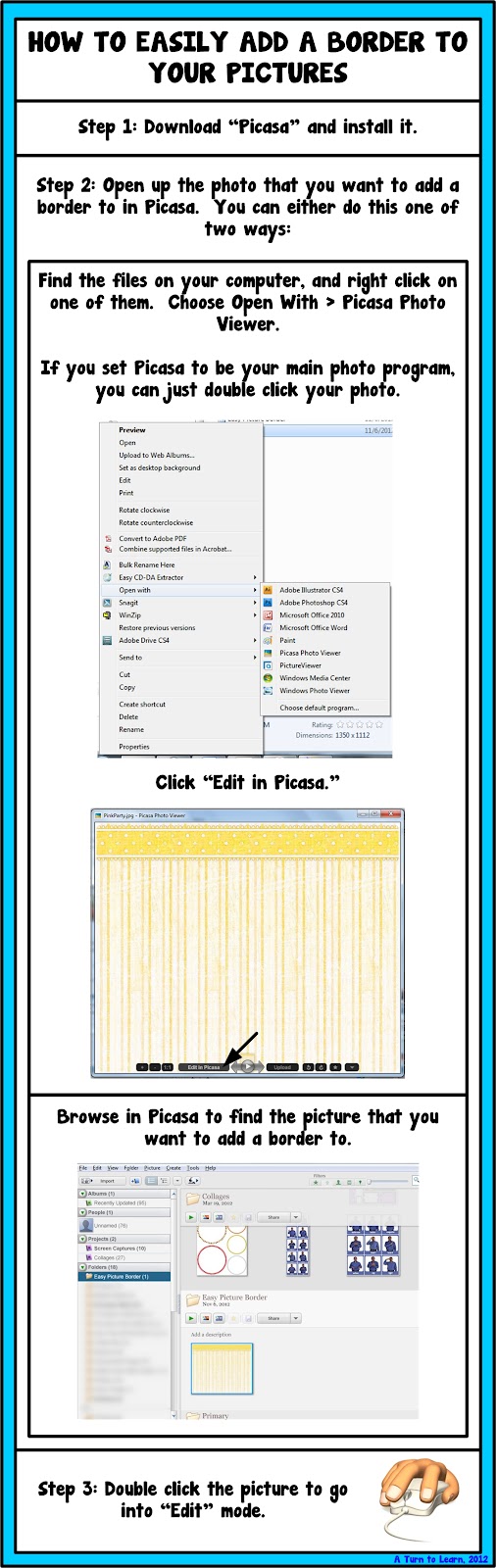
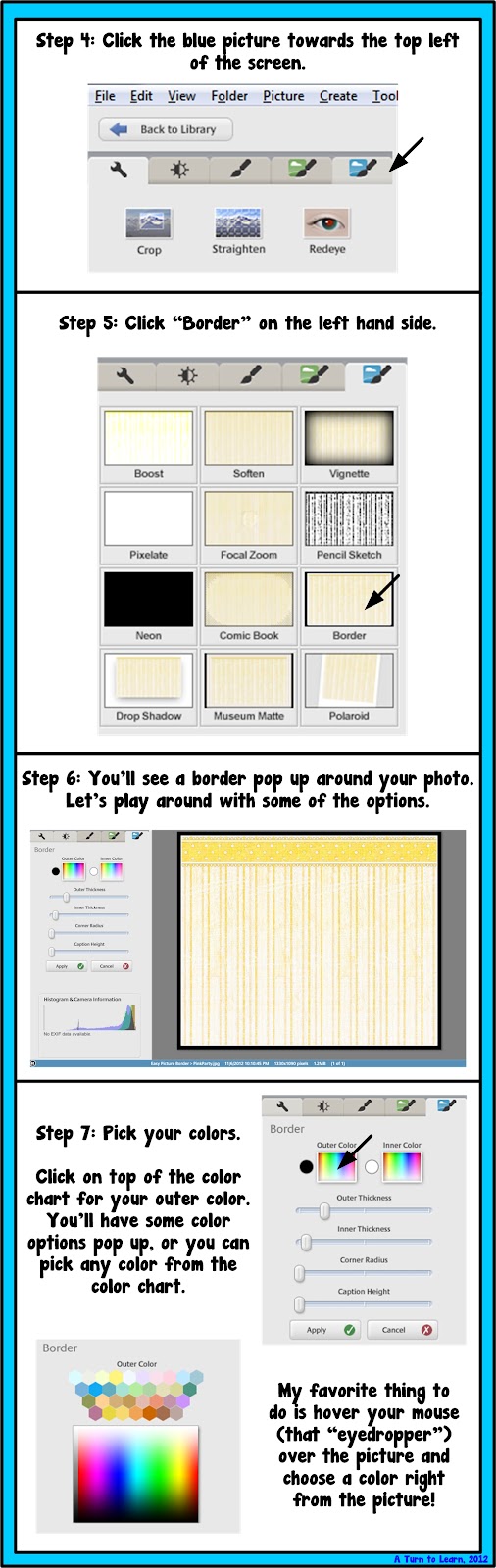
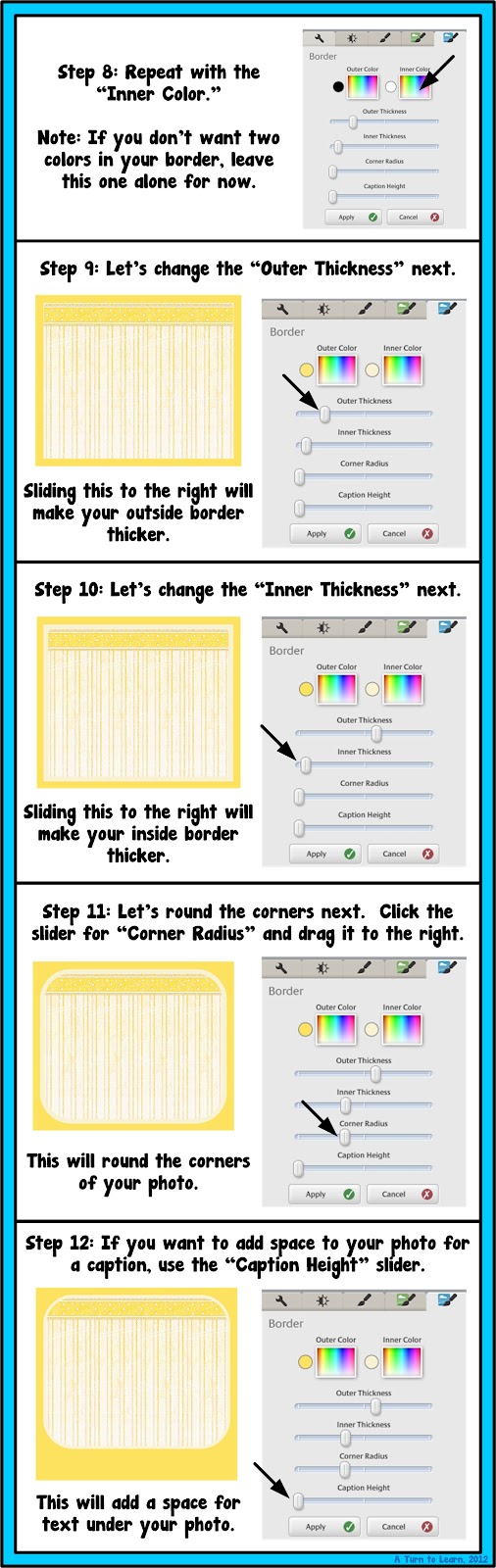
How to Easily Add a Border to Your Pictures!

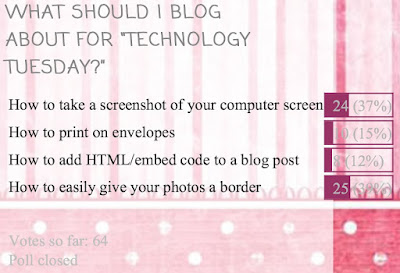
This was the closest poll ever I think! It literally couldnt have been any closer!
This tutorial uses the program Picasa, which is a free program offered by Google (and I just love it!). You can download it here.
If you already have Picasa installed, click "Help > Check for Updates" and update your version. Its not entirely necessary, but it may give you some neat new features!
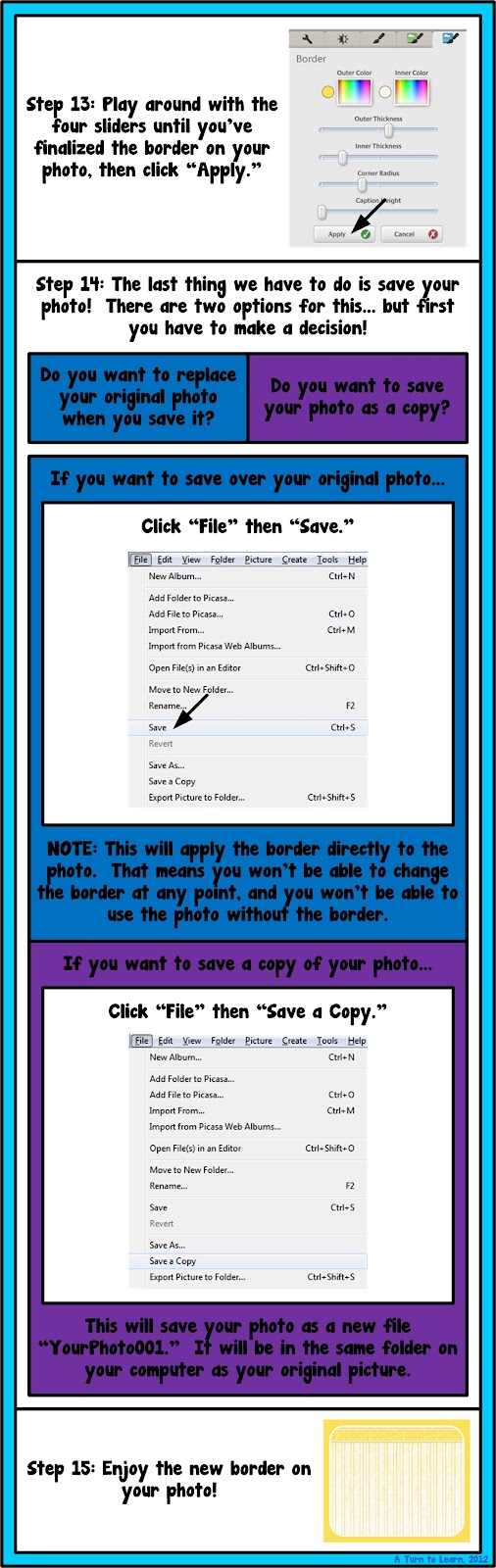

For next week, Ill add an option thats been requested by a few people: how to make an editable powerpoint that locks down clipart and other images! For example, this freebie (which reminds students to write their name on their paper) locks down the border so you cant move it around or copy it to another program.

Thursday, February 26, 2015
How to Organize Your Files for the Week!
If you liked last weeks post about organizing your life with technology, youll love this weeks post as well! The winner of this weeks poll is how to organize your files for the week, using technology of course!

Heres the poll:

Before I go into organizing your files for the week, Im going to talk briefly about organizing your files digitally. I know its a wordy tutorial but I promise I have lots of good tips included!!!

Now for the tutorial... you definitely need to download Dropbox if you dont already use it! If you already use it, keep reading anyway because I have some little trick you still might enjoy!



The next Technology Tuesday post wont be until August 6... because Ill be vacationing with my hubby in Alaska celebrating our TEN YEAR anniversary (technically two years married, but 10 years since we started dating). How crazy is that?

Now, as for the poll... Ill be adding how to give any picture a moving/talking mouth!
Wednesday, February 4, 2015
Remove password pattern lock and hard reset your Nokia X
This can fix the following issue:
1. If you forgot your gmail account
2. If you forgot your pattern lock
3. If you forgot your password
4. If your phone stuck up in LOGO only, this work sometimes if the firmware is not totally damage.
5. If you the apps are force closing automatically.
Again, if you are going to hard reset / factory reset your data will be deleted. Like games, applictions, calendar sync, etc.. etc.
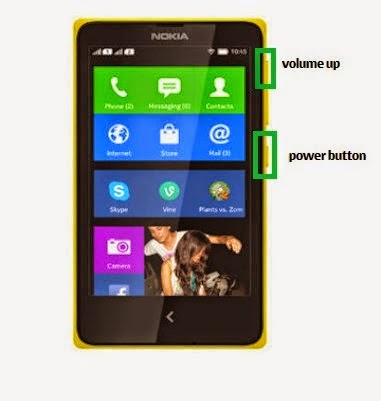
Here is the procedure:
1. Turn off your phone
2. Press and HOLD VOLUME UP and Power Button
3. Release the POWER button when the Nokia Logo appear, but keep on holding VOLUME UP.
4. Press the VOLUME Rocker to navigate and Power key to confirm.
5. Select wipe data / factory reset
6. Reboot your phone.
I hope this tutorial helps ;)
Cherry Mobile Flare S3 stock rom firmware to unbrick your phone
This is my personal back up of Cherry Mobile Flare S3 ROM, the firmware or ROM is already Rooted with CWM installed when you are going to flash your phone. The version of this firmwre is v1.03. When flashing use the latest version of SPFlashtool.
Although some of my tutorial are from version SPFlashtool version 3.xxx, the procedure is still the same because the SPFlashtool that you are going to use is version 5.xxxx

You can fix the following issue in your phone:
1. Bootloop
2. Damaged System UI
3. TP Upgrade only
4. Dead phone but it is detected in computer
5. Remove Gmail Account / Password / Pattern Lock (Alternative Way)
"DOWNLOAD THESE FILES"
Firmware Here -->Cherry Mobile Flare S3 v1.03
Alternative Driver --> AutoInstaller
"Use WinRar or 7zip to extract the firmware"
"Extract the files to your desired folder" See picture below"
"If you encounter error in flashtool, use different version of it."

Installing Driver
First try the Alternative Driver, which is the AutoInstaller. Just open the install.bat then it will automatically install the driver. Then proceed to flashing. If it did not work then proceed with VCOM driver that you had downloaded. Then install it manually follow the guide below.
Reference Video using Driver Auto Installer (watch in HD)
When installing it manually your phone must be turned off, then connect it to your computer/laptop while pressing VOLUME UP or VOLUME DOWN. This will detect and look for the driver.

1. This is the first time that you will connect your phone and it will search for the correct driver.


3. If the driver is successfully installed MediaTek DA USB VCOM will appear in the New Hardware Wizard.
Video Flashing your phone (please watch in HD)
Flashing


Reference Video Using FlashTool version 5.xxx (watch in HD)
3. After you load the file, press F9 or Press Download to Flash your Phone.
Load the scatter fileClick in Format (a new menu will popup)Make sure that you select Format whole flash except bootloader then press OKConnect your phone in bootmode (Turn off your device then hold Volume UP or VOLUME DOWN then insert USB)It should detect your phone and continue to flash.Then Click Download to fully flash your phone.Hard Reset your phone after flashing.
- Load the scatter file
- Choose Format + Download (Underneath Scatter-loading file)
- Then Click Download and wait until it is done flashing
Restore yong IMEI in MTKDroidTools version 2.5.3. You will have this error when you format your phone in Flashtool as I had experienced. To restore download MTKDroidTools version 2.5.3 After you extract the file. Open the green robot, you must enable the usb debugging in your phone. It is usually located in Settings>Devoloper Mode then look for usb debugging. After enabling it. Connect your phone in your computer then in MTKDroidTool click on ROOT. Wait for it to finish, then Click in IMEI/NVRAM, input 15 number in each box. Then click REPLACE. Then click Reboot or you can manually turn off your phone. Then turn your phone on again. You can see that you have fully restored your IMEI.
I hope this tutorial help you. Please drop a comment if something is not clear to you.
Sunday, February 1, 2015
Hard Reset your DTC GT5S A Junior Duo and remove password pattern lock and gmail account

Hard resetting / factory resetting your phone will solve the following issues:
1. If you forgot your pattern lock
2. If you forgot your gmail account
3. If you forgot your password
4. Apps that automatically force closing
5. Stuck in DTC Logo (sometimes does not work if the firmware is totally damage)
NOTE: Performing hard reset will erase your data.
To hard reset:
1. Turn off your phone.
2. Press and Hold first the POWER Button and then immediately Press and HOLD VOLUME UP until you see the Android Robot.
3. Press the POWER Button to activate Android System Recovery (or you can try all buttons if power button did not work, I had a slight memory lose there :D.)
4. Select wipe / factory reset, press Volume rocker to navigate and press the VOLUME UP to confirm your selection
5. Reboot your phone.
Note:
If performing hard reset did not succeed, you need to wipe the cache first in the android system recovery before performing wipe / factory reset.
I hope this tutorial helps you.. If you have any question just drop a comment.
Monday, January 26, 2015
Hard Reset your Samsung Galaxy S4 mini I9195T and remove password pattern lock gmail account
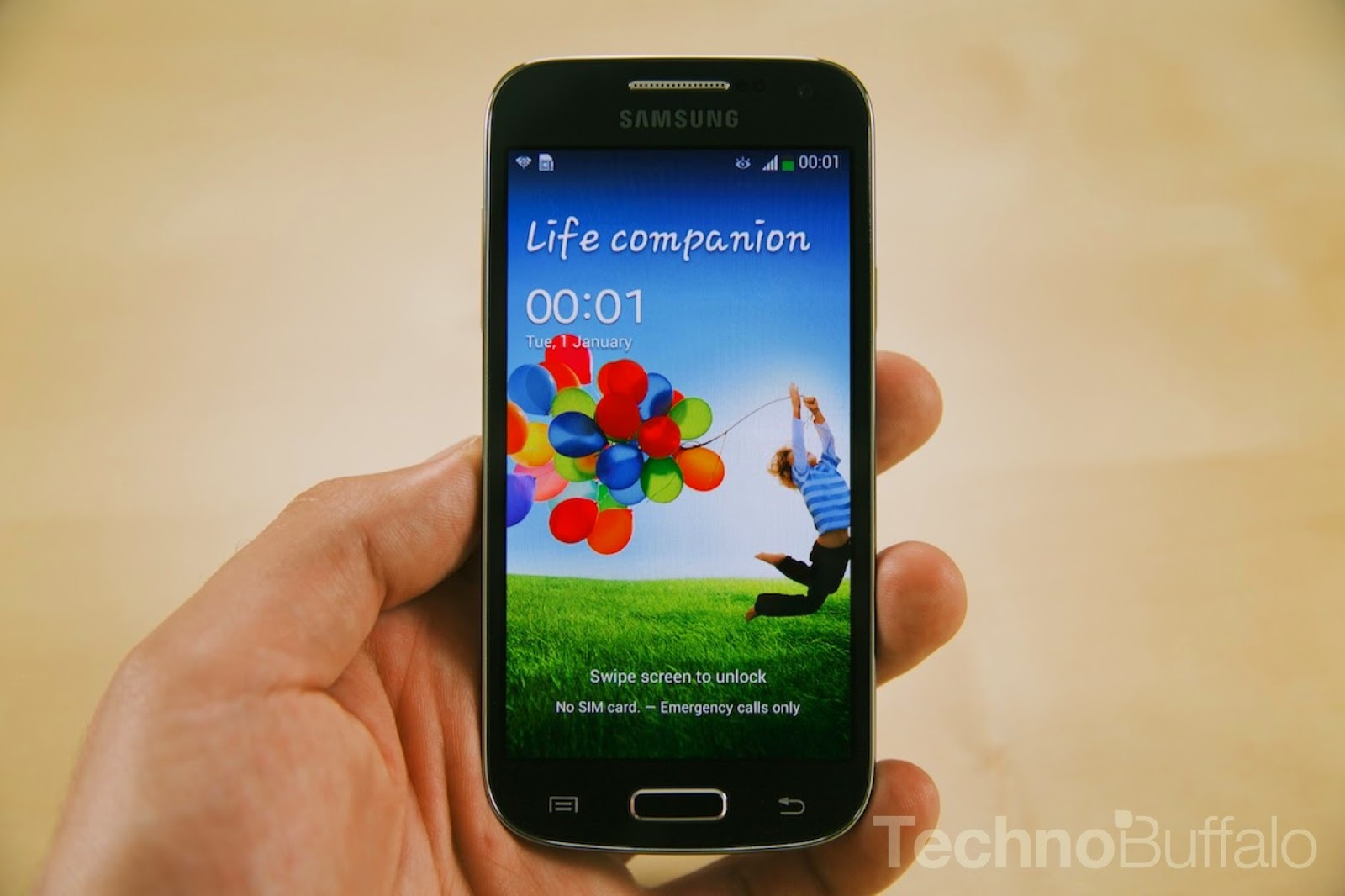
Hard resetting / factory resetting your phone will solve the following issues:
1. If you forgot your pattern lock
2. If you forgot your gmail account
3. If you forgot your password
4. Apps that automatically force closing
5. Stuck in Logo (sometimes does not work if the firmware is totally damage)
NOTE: Performing hard reset will erase your data.
To hard reset:
1. Turn off your phone
2. Press and Hold VOLUME UP + Home Button +Power Button simultaneously. Do not release until you see "RECOVERY BOOTING" in the screen.
3. Just wait until you see the Android System Recovery
4. Select wipe / factory reset, press Volume rocker to navigate and press the POWER Button to confirm your selection.
5. Reboot your phone.
Note: Some variant of Samsung Galaxy S4 Mini does not show recovery booting. So if you see the Samsung Galaxy S4 Mini Release the buttons
Note: If performing hard reset did not succeed, you need to wipe the cache first in the android system recovery before performing wipe / factory reset.
I hope this tutorial helps you.. If you have any question just drop a comment.