Tuesday, March 10, 2015
Finding Success on the Google Apps Marketplace
Editor’s note: This is a guest post by Cameron Henneke. Cameron is the founder and principal engineer of GQueues, a task management app on the Google Apps Marketplace. Cameron tells the story of his application and provides some tips for developers considering integrating with Google Apps and launching on the Marketplace -- Ryan Boyd
Google recently announced that over 4 million businesses now run on Google Apps, continuing its growth as enterprise software that focuses on collaboration. This of course is great news for Google Apps developers, since this means there are 4 million potential customers on the Google Apps Marketplace looking for complimentary tools to enhance their productivity. As you know, listing an app requires just a few quick steps, and the Marketplace targets a growing audience of customers ready to purchase additional solutions.
So what kind of success might you see on the Marketplace and how can you maximize revenue? As the founder of GQueues, an online task manager, I have listed the app on the Marketplace since its launch in March 2010. Over the past year and half, I have found the Marketplace to be my most successful channel, and have discovered a few tips along the way that proved key to this success.
Solve a Real Problem
Though this seems obvious, this first point is critical: make sure your app solves a real problem. This means you’ve identified actual people and businesses that have this problem and are actively looking for a solution. Perhaps they have already tried other tools or cobbled something together on their own. For example, I’ve verified Google Apps users are looking for an intuitive way to organize their work and manage tasks with others. GQueues fills this need as a full-featured task manager that allows users to assign tasks, share lists, set reminders, create tasks from email and tag work for easy filtering. Google Apps users come to the Marketplace with a variety of needs, make sure your app addresses at least one of them.
Create Several Points of Integration
As you solve a customer’s problem, make sure you integrate with their existing tools. For Marketplace customers, this means adding as many integration points with Google products as possible. This is important for several reasons.
First, it’s great for the user and facilitates adoption. If your service works seamlessly with other products they are already familiar with, they don’t have to spend time learning something new. For instance, GQueues has two-way syncing with Google Calendar. Since users already know how to drag events to new dates in Calendar, dragging GQueues tasks around the calendar is quite intuitive.
Secondly, more integration directly helps your app’s listing in the Marketplace. Each listing has a set of icons representing product integrations. GQueues integrates with Calendar, Mail, Contacts and Google Talk, which indicates to a customer that using this tool will allow their users to work more efficiently. Plus, customers can search based on integration points, so the more you have, the broader your presence in the Marketplace.

Lastly, integrating with existing products speeds development. Utilizing Google APIs allows you to innovate faster and respond to your customers growing needs. GQueues uses the XMPP service of Google App Engine, which eliminated the need to build a separate chat backend and makes it easy for users to add tasks by chatting a message from anywhere.
Engage Your Customers
Once you’ve listed your deeply integrated app that solves a real problem on the Marketplace, be sure to engage with your customers. The Marketplace allows users to rate your app and leave verified reviews, which not only impact the app’s listing position, but greatly influence potential customers’ willingness to test it out. I manage the GQueues Marketplace listing with a two-fold approach:
- Encourage happy customers to leave a review after a successful support interaction
- Reach out to users leaving negative reviews to address their specific issue and understand better how the app can be improved.
These actions are quite simple, but immensely effect your app’s presence in the Marketplace.
Marketplace Impact
Though each app is unique, I’ve found that following the tips mentioned above have helped the Google Apps Marketplace become GQueues’ top revenue channel.
GQueues is based on a freemium model, and the average conversion rate for a typical freemium product is 3-5%. Looking at all the regular channels, GQueues has a 6% average conversion rate from free users to paid subscribers - slightly higher than expected. However, the GQueues users from the Marketplace convert at an astonishing rate of 30%.
The Marketplace claims to target an audience ready to buy, and the data really backs this up.

Not only does the Marketplace have a substantially higher conversion rate, but it also drives a considerable amount of traffic. Looking at the data over the same period, 27% of all new GQueues users were acquired via the Marketplace.

Combining the acquisition rate with the conversion rate shows that the Marketplace is actually responsible for 63% of all paid GQueues users.

As Google Apps continues to grow worldwide, the need for deeply integrated, complimentary business tools will also expand. Based on my experience with GQueues, I strongly recommend the Google Apps Marketplace as a rewarding channel for apps that integrate with Google Apps.
 | Cameron Henneke profile Cameron Henneke is the Founder and Principal Engineer of GQueues. He is based in Chicago and loves Python and JavaScript equally. While not coding or answering support emails, he enjoys playing the piano, backpacking, and cheering on the Bulls. |

Tuesday, March 3, 2015
How to Superimpose Text on a Image

Thank you so much for visiting my blog each week and voting!

First things first, download Gimpshop so you can practice along with the following directions! Gimpshop is the same program we used to give a picture a transparent background and blur out faces/names in a picture, so you may have already downloaded it. If not, be sure to download it for free!
Now... lets put that text in place!



Thank you for visiting this Technology Tuesday Post! Be sure to vote for what I should blog about next Tuesday!
Friday, February 27, 2015
Top Educators in Malaysia on Twitter!

PASSION TO TRANSFORM?
HOW TO JOIN?
- Click Add to List
Listly login required. Account created using Facebook, Twitter, LinkedIn or Google+ login. - Add your Twitter ID URL
Click Enter link, add URL and then Click Go!. It will then automatically add your picture and Twitter data, which you can update again if needed. - Add a Brief Profile
What you do, where you work and URLs to your website/blog or other social media stuff that you want to share. - Add Your Level and Location
Level(s) = University, College, Polytechnic, School, Corporate (could be more than one)
Location = Selangor, Kuala Lumpur, Penang, etc. The state in where you work or located most of the time (could be more than one). - Click Save
IMPORTANT NOTICE
WHY TWITTER?
FACEBOOK?

THE MALAYSIAN SUPER HEROES IN EDUCATION
Lets connect, network and unite forces to transform Malaysian education in all possible areas, and empower locals and the world to experience engaging and inspiring learning with a Malaysian flavor too delicious to resist :)
The Secret Get 100 000 Followers On Twitter In 24 Hours!

...more
THE SECRET
However, if you are following 1 million and have 100,000 followers, others with a bit of knowledge would think of you as a wannabe twitter king. So, then learning the game, you will eventually remove those 900,000 that did not follow you. Now it looks better, right! 100,000 Followers versus 100,000 Following. But then you get smarter, and remove 50,000 (or why not 90,000) of those you are following, and trust me they will have no idea, because who keeps track of these kind of things. And swoosh you have 100,000 followers, but you are only following say 10,000 now (Do no Evil!). Now that looks really impressive! Now, you are crowned a Twitter King! Actually, 100.000 followers is not much, so the next step would be to get 1,000.000 million followers. You repeat the 24-hour cycle again and again and again...
Wait a second! Where am I going to find one million people to follow on Twitter. Ashton Kutcher to the rescue! Currently, he has 2 million plus followers (as I write). So, if you speed off to click 2 million times (excluding clicking the Next buttons!), you should expect 200,000 followers within a 24-hour period. Even if you have to wait 2-3 days, I think you will survive. Next, you might go for Oprah (although she is only no. 7 on the top 100 Twitter Counter list), as you might find many new Twitter faces there who are not following Ashton Kutcher.
Wait a minute! How am I going to be able to click 2 million times within a 24-hour period? You need a good broadband connection for sure, and some Bruce Lee kind of chopping skills.
What if I told you that you only need to click a special MAGIC BUTTON once to follow all Ashton Kutchers followers, or any other person on Twitter you choose. Believe or not, the mastermind (will never reveal who!) behind this tool, is currently working on the ultimate magic button that will enable anyone to click once to follow every single soul on Twitter. Imagine following lets say 10 million people with one click.
Wait an hour! Cool, but how do I remove those people who eventually dont follow me, so that I dont look like a Twitter Twit! Well, what if I told you that there is a MAGIC REMOVE BUTTON that filters and removes all those people who are not following you, and has an amazing fuzzy semantic logic that can also strategically using a cosmetic target marketing feature to remove a certain specified number of your followers (to your own liking), so that you can really look like a Twitter King.
This mastermind (that I am not going reveal! Dont think of asking! I keep my word!) is in the early stages of conceptualizing a MAGIC GHOST BUTTON that will add you followers without them even knowing it. It is really smart, because it only targets people that follow more than a thousand Twitter users, making it difficult to track its ghost clicking activity.
I am ready! But, why dont you have more than +600 followers? Well, some people dont practice what they preach. I only target educators that I want to connect with (Following a 1,000+) and perhaps learn something from them...
What! You got to be kidding! I need to remove this dude as fast as possible from my list!
Finally, when you embark on your important mission to get 100,000+ followers (Too small, think millions! Think bigger than big!), remember to do it fast! If you are interested in using the magic buttons I have mentioned, please contact me... which of course cannot be revealed here. Please meet me on the MOON as soon as possible. Further directions will be given when you reach the moon.
But then again, who cares about the number of followers you have! What really matters is the number of RETWEETS you have (Topsy will tell you!), and how many times they are being clicked, and so on. Also,... (some other time). Pay me well, and I will reveal :)

Saturday, January 31, 2015
Now pay for private uploads on SlideShare

To pitch Pro accounts, SlideShare now has two different upload buttons for private and public uploads.

authorSTREAM, SlideShares competitor still offers 50 private uploads to free members.
Thursday, January 29, 2015
How to Install IOS apps on Android
How to Install iOS Apps on Android
  |

How to Turn Off Factory Mode yellow text on Samsung Galaxy Tab
How to Turn Off Factory Mode or Yellow Text on Samsung Smartphones and Samsung Galaxy Tablets.
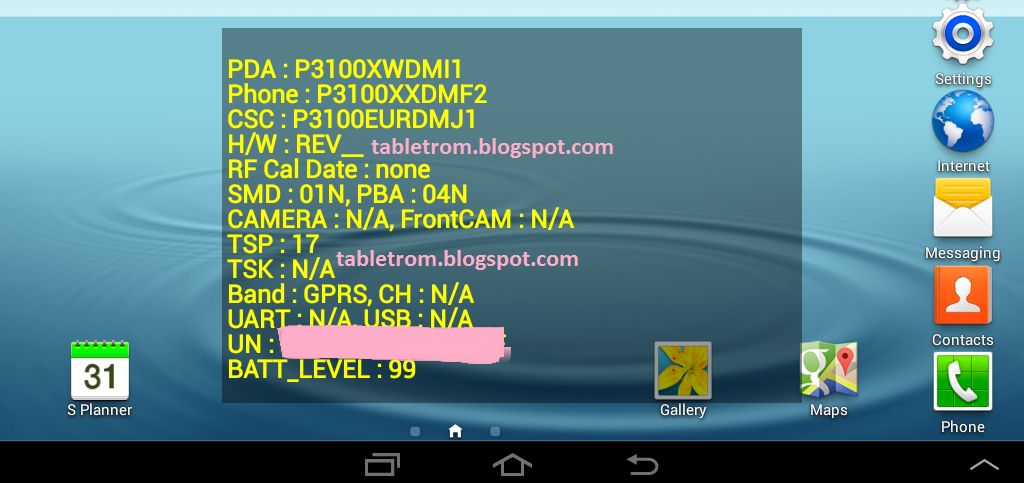
Disabled Samsung galaxy functions while Factory Mode is turn on Samsung Tablet and Samsung Smartphones :
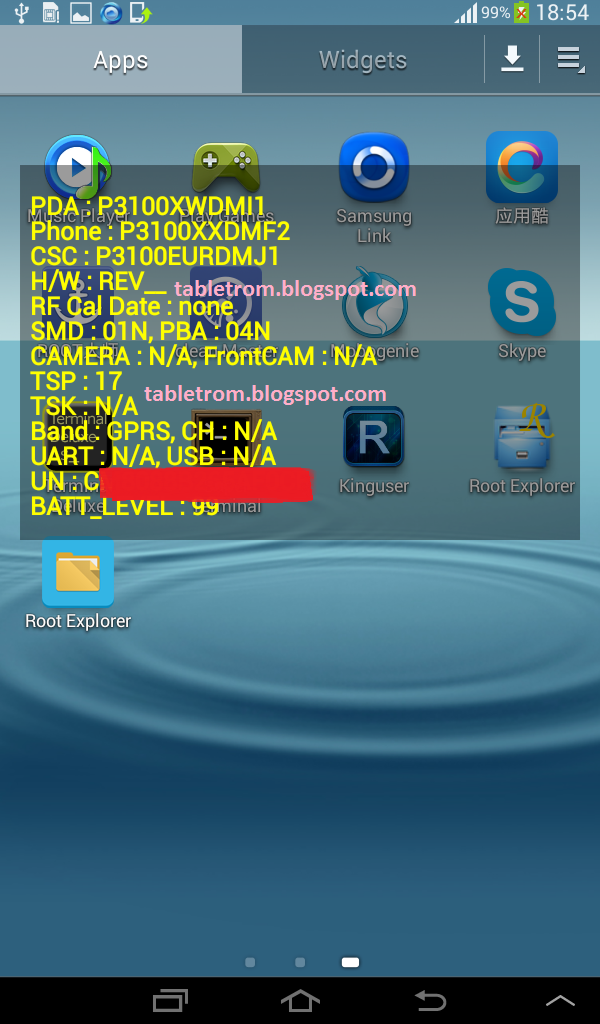
How to Turn off Factory Mode on Samsung Galaxy tablet or Samsung Galaxy Smartphones.
How to Root Samsung Smartphones and Samsung Galaxy Tablets.
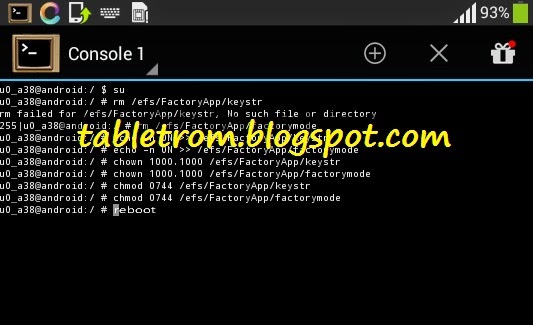
After successful root SU icon will be displayed on tablet or smartphone. Now you you need to download and install any Terminal Emulator from Google Play Store. Its time play with some commands on Samsung Smart Device.
 |
| Terminal Emulator |
Open Terminal
Type su (Allow SU to grant access if asked . )
Type rm /efs/factoryApp/keystr (if the message appear "rm failed for /efs/factoryApp/keystr no such directory") ignore it .
Type rm /efs/factoryApp/FactoryMode
Type echo -n ON >> /efs/FactoryApp/Keystr
Type echo -n ON >> /efs/FactoryApp/FactoryMode
Type chown 1000.1000 /efs/FactoryApp/Keystr
Type chown 1000.1000 /efs/FactoryApp/FactoryMode
Type chmod 0744 /efs/FactoryApp/Keystr
Type chmod 0744 /efs/FactoryApp/FactoryMode
reboot
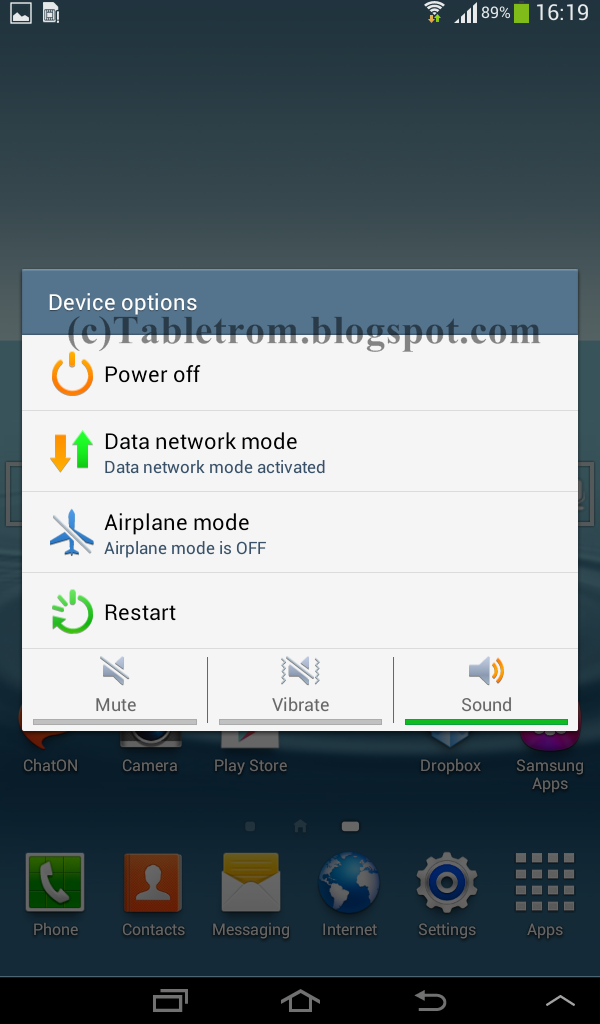
Galaxy tablet or Galaxy Smartphone will be rebooted and you are done. Now the yellow text should not appear because this all happen when efs become corrupted. Now you have successfully repair efs. On / Off mode will be appear again. This method is personally tested on Samsung Galaxy Tab 2 , success rate was 100% . Work like charm.
For reference see image below.
  |
| ON/OFF Menu Appear |
 |
| No Yellow Text found |
Tuesday, January 27, 2015
How to use LinkedIn Video tutorials on learning LinkedIn
LinkedIn Essential Training - Welcome
LinkedIn Essential Training - Signing up with LinkedIn
LinkedIn Essential Training - Adding your work experience and education
LinkedIn Essential Training - Selecting an appropriate networking approach: Open vs. Closed
LinkedIn Essential Training - Why start a LinkedIn group?
LinkedIn Essential Training - Reviewing the Jobs section
Where can I view the rest of the videos?
If you enjoyed these videos and want to access the entire LinkedIn Essential Training course, you can sign up for a lynda.com training membership. Your membership will allow you to access not only this course, but the entire lynda.com online training library for as low as $25 for 1-month. Thats over 900 courses with 50,000+ video tutorials. No long-term commitment required. You can cancel your membership at any time.
Not yet convinced? Try a 7-day free trial.
As a special promotion, visitors of this site can get a 7-day free trial to lynda.com. This free trial gives you access to their entire training library of over 900 courses.
Here is a more detailed description of the course:
Training provider: lynda.com training
Title: LinkedIn Essential Training
Author: Richard Colback
Duration: 2hrs 36mins
Date of release: 16 February 2011
1. Introducing LinkedIn
What is LinkedIn?
2. Signing Up
Signing up with LinkedIn
3. Reviewing the Key Parts of LinkedIn with a Finished Profile
Learning the Home page
Understanding the importance of the Highlights section
Exploring the personal summary
Reviewing work experience and education
Working through additional profile information
Understanding the importance of connections
Looking at the power of groups
Understanding how companies use LinkedIn
4. Creating Your Profile
Building your profile starting with the highlights
Adding your work experience and education
Using groups to add depth to your profile
Understanding the difference between a public and private profile
5. Managing Connections
Understanding why connecting is powerful
Selecting an appropriate networking approach: Open vs. closed
Reviewing connection settings
Accepting and sending invitations and messages
Giving and receiving recommendations
Accepting automatic connection recommendations
Connecting via groups
Using the Tweets application to grow your network
Understanding what your network statistics mean
6. Being Part of a Group
Finding the right groups for you
Joining groups and selecting options
Being mindful of etiquette and communication within groups
7. Starting Your Own Group
Why start a LinkedIn group?
Defining groups
Selecting options
Building your group membership
Managing your group
8. Seeking Jobs
Looking for jobs on LinkedIn
Reviewing the Jobs section
Trolling the job board
Using keywords in your profile to increase visibility
Following companies and getting job alerts
Monitoring your network stats to know where to make adjustments
Using additional options: Buttons, service provider listings, and paid options
9. Recruiting Employees
Searching profiles to find suitable candidates
Understanding the etiquette for approaching candidates
Assessing references
10. Marketing Your Business
Using Linkedin for business
Setting up a business profile
11. Getting Involved with Communities
Asking questions and providing answers
Engaging through group discussions and news
12. Using Applications
What are apps?
File-sharing apps
Blog apps
Personal interest apps
Business info apps
Presentation apps
Professionally focused apps
Mobile apps
Removing apps from your profile
13. Editing Your Profile
Completing your profile
Editing your profile to stay relevant
Managing your settings